Summary
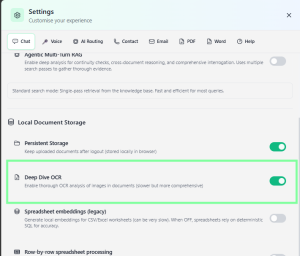
The OCR (Optical Character Recognition) feature in KnowledgeFlow enables the platform to extract and make searchable any text found within images or scanned documents, such as PDFs containing scanned pages, handwritten notes, or diagrams with labels. This means users can upload documents that do not have selectable text, and the system will process the images to extract the text automatically. The feature can be toggled on or off, allowing users to choose between fast uploads (without full OCR) and comprehensive analysis (with OCR enabled) depending on their needs.
Use Case
Scenario:
A legal team receives a scanned contract as a PDF. Normally, searching for specific clauses or terms would require manual review. With KnowledgeFlow’s OCR feature enabled, the team uploads the scanned PDF, and the platform extracts all text from the images, making the document fully searchable.
Key Benefits:
- Enables search and question-answering on scanned or image-based documents
- Saves time compared to manual review
- Increases transparency and auditability (all extracted text is accessible)
- Supports compliance by ensuring all document content is discoverable
Walkthrough
- Upload the Document
- Click the upload button and select your scanned PDF or image-based document.
- Enable OCR Mode
- In Settings, locate the “Deep Dive OCR” toggle.
- Turn ON for comprehensive text extraction from images (recommended for scanned documents).
- Leave OFF for faster uploads (recommended for text-based documents).
- Search and Query
- Once OCR completes, all extracted text is searchable.
- Ask questions or search for terms—answers will reference the OCR-extracted content.
Note
OCR processing can take longer for large or heavily scanned documents (up to 20–30 minutes for very large files). For quick reviews, use the fast mode; for critical accuracy, enable Deep Dive OCR. This feature is especially valuable for legal, medical, and compliance teams working with scanned or image-based records.